Discovery
On this page
The Discovery page of a tenant brings what the live network reports together with the documentation.
The Discovery page#
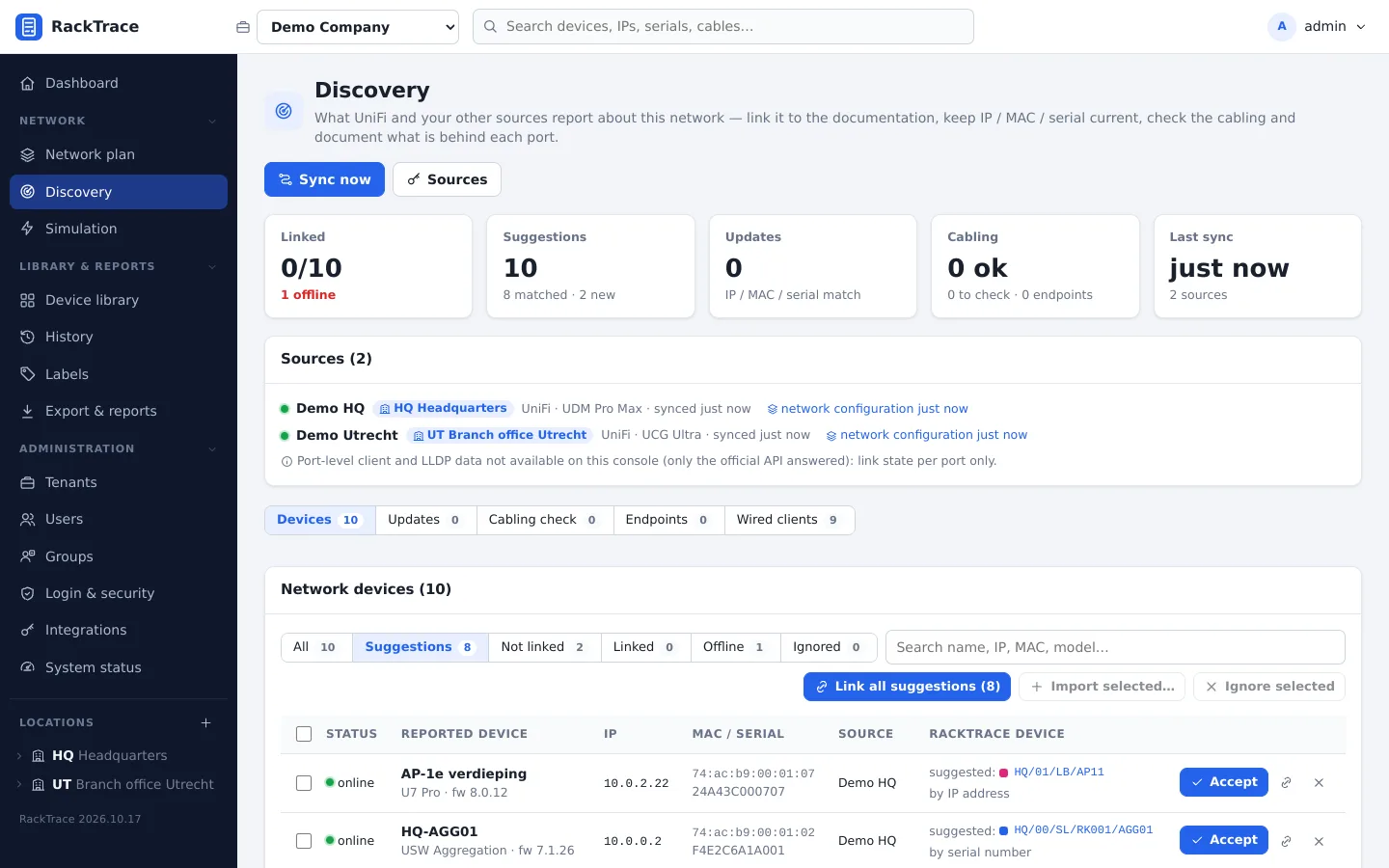
Open Network → Discovery. The tiles at the top count linked devices, suggestions, updates and cabling problems; click one to jump to it. The tabs below them are Devices, Updates, Cabling check, Endpoints, Wired clients, Deviations and Changes. Sync now reads the sources again, and Sources lists them with their last sync.
Devices#
- Every device the network reports, with status, IP, MAC / serial and the RackTrace device it is linked to. Filter with All, Suggestions, Not linked, Linked, Offline and Ignored.
- Accept links a suggestion (matched by MAC, serial, IP or name). Link all suggestions accepts them all. Nothing on the devices themselves changes; with a source that keeps the documentation in sync, the linked device takes over its serial number, IP, MAC and port configuration right away.
- The link icon links a device by hand; Unlink undoes it.
- Import (or tick several and Import … selected…) creates the device at the location of the UniFi site, with a matching library model when there is one. Under Place, let RackTrace choose the room (where its cable leads, or next to its uplink switch) or put all of them in one room.
- Ignore hides devices you don't document.
Updates#
Lists the management IP, MAC, serial and name that differ from what the network reports, from → to. Tick what to take over and click Apply or Apply all ticked. Names are not ticked by default. With a source that keeps the documentation in sync, IP, MAC and serial follow by themselves and only names show up here.
The documentation follows the network#
Keep the documentation in sync is a setting of each source under Administration → Integrations. It is off for every new source, whatever its type: what a source observes reaches the documentation through review (Updates, the cabling check, the network plan review) until an administrator switches this on for that source. A source that was connected before this setting existed stays off as well. Switching it on asks for a confirmation, because from that moment the source is leading and the linked devices take over its configuration at once. With it on, a linked network device (switch, access point, gateway) takes over what the source reports:
- when it is linked or imported, and after every sync;
- also while the device is offline: the controller keeps its settings, so a port renamed or reconfigured meanwhile is updated too.
| What | Taken over |
|---|---|
| Device | Serial, Management IP and MAC (the name stays a choice under Updates) |
| Label | The port's own name in the source, such as Printer reception. A default name such as Port 12 leaves the label alone. |
| VLANs | The port profile when the port uses one unchanged, otherwise the port's own VLANs. A VLAN or profile the network plan does not have yet is added from the source's configuration, in the network of the site. |
| PoE setting | On, off, passive 24V or passthrough. Off is only set on a port that offers PoE. |
| Switched off | A port that is disabled on the switch. |
| Link aggregation | The ports that form one link, such as LAG 51+52. |
The source is leading: a change to these fields in RackTrace is undone at the next sync, and the port dialog says so. What the source does not report stays as documented, and nothing is ever written to the source. Every change is in the device's History, under the person who linked the device or under the source.
Note
Switch the setting off for a source whose controller is not kept up to date. Differences in IP, MAC and serial then wait under Updates, and the VLANs of switch ports under Configuration from UniFi.
The cabling check#
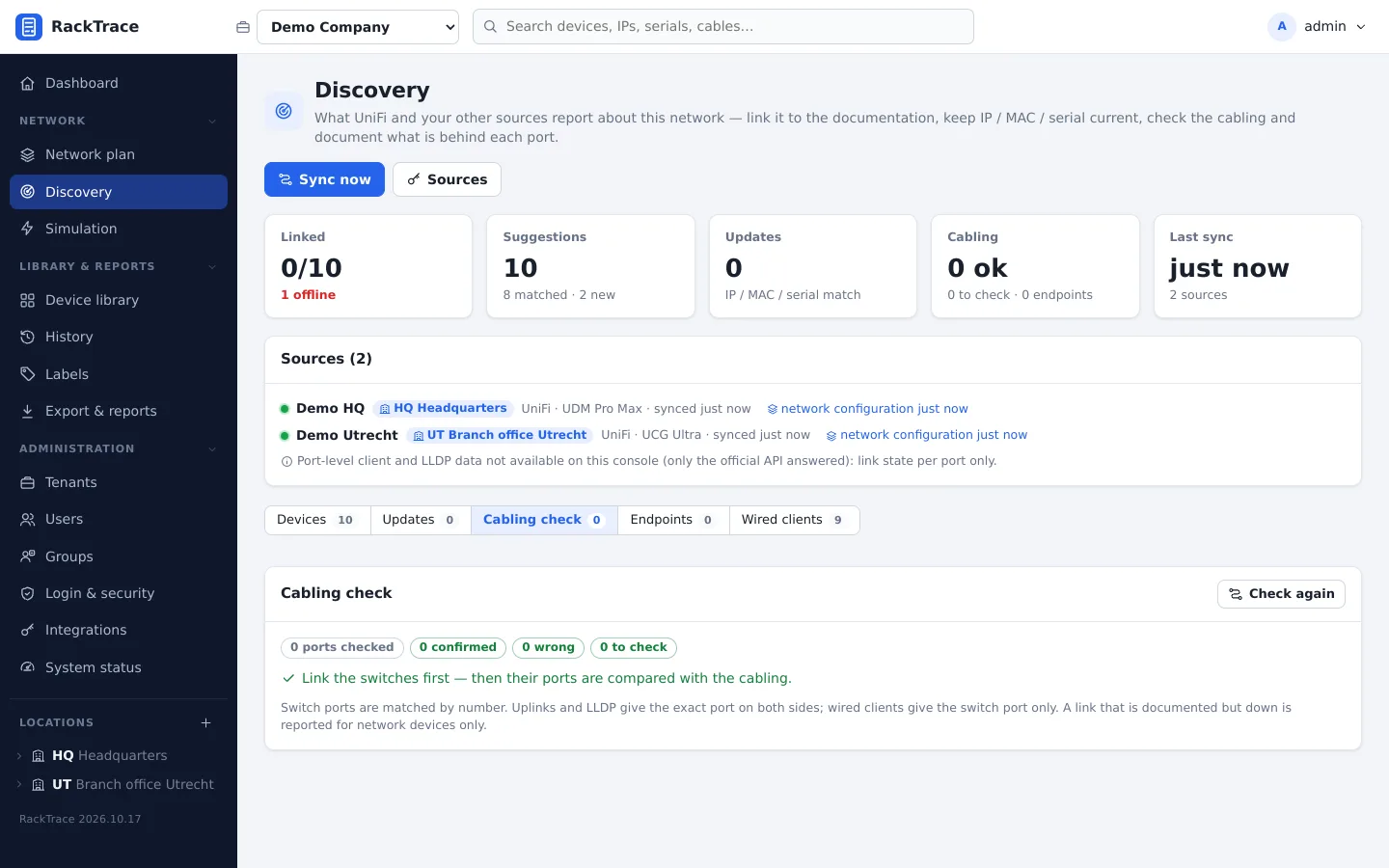
The Cabling check tab compares every live link with the documented cable path. Uplinks and LLDP give the exact port on both sides; wired clients give the switch port. Check again runs it once more.
| Result | Means | What to do |
|---|---|---|
| confirmed | The live link matches the documentation. | Nothing. |
| mismatch | Another device is on the port than the documented far end. | Fix the cable in RackTrace, or re-patch on site. |
| wrong port | The right device, but another port on it. | Move the cable to the right port. |
| incomplete | The documented path stops at a free outlet or patch port. | Complete the cable path, or see Endpoints. |
| planned | The link is live, but the cable is still planned. | Clear Planned on the cable. |
| down | A documented link between network devices is down. | Check the cable and both devices. |
| missing | A live link or client with no cable documented. | Document the cable. |
| unknown | A neighbour that isn't linked to a RackTrace device yet. | Link it on the Devices tab. |
Each item has an open link to the switch, and the status of its deviation. Switch ports are matched by number.
Endpoints and wired clients#
The Endpoints tab lists clients that a switch sees on a port whose documented cable ends at a free outlet or patch-panel port:
- Create & connect creates the device (name, IP and MAC from the network) with a LAN port and the cable to that free port. Create & connect all does them all.
- Connect: the device already exists in RackTrace; only the cable is added.
- Link to …: a device is already documented at the end of the cable; the client is linked to it.
Wired clients lists every wired client with its IP, MAC, network and VLAN, switch port and linked RackTrace device.
Hosts without SNMP#
A scanner job looks at the other addresses of its ranges in two ways: a TCP sweep (a host that answers or refuses a connection on one of the ports) and, from scanner version 1.6.0, a ping (ICMP) for what answered neither. A host that only answers ping appears as a client, never as network equipment. The ping runs at most 64 at a time and covers at most 4,096 addresses per job and run. All jobs of a scanner that run in the same round share 30 seconds of pinging, so that pings do not hold up the monitoring checks of that scanner; when the time is used up, the remaining jobs of that round skip the ping and say so in their notes. A larger range (such as a /16) is pinged in parts: a scanner running as a service continues where the previous run of the job stopped, and the job says in its notes how many addresses were left. A scanner started with --once (for instance from cron), or one that was restarted, begins at the start of the range again. If the scanner cannot run ping at all (no such program, or no right to send ICMP), the job says so in its notes instead of reporting an empty network. Only addresses inside the ranges of the job are ever pinged. A scanner older than 1.6.0 simply does the TCP sweep, as before.
For a host without SNMP the manufacturer comes from the first half of its MAC address (the IEEE registry of prefixes), so a printer or camera shows as, for instance, Axis Communications instead of an empty line. It appears on the Wired clients tab and on the device page, in the Discovery line, when the device has no manufacturer of its own. A random (private) MAC address, as some phones use, has no manufacturer; neither has a host whose MAC address the scanner cannot see (a host in another subnet).
Updating a scanner#
From scanner version 1.7.1, a scanner updates itself: RackTrace says which agent it carries, and the scanner installs a newer version only when it is signed with a key the scanner trusts. That works when the environment signs its agent; otherwise the scanner card says that a new version is available. A scanner older than 1.7.1 needs one update by hand, after which it keeps itself up to date. A scanner that cannot update itself says what to do for the way it was installed:
| Installed as | What to do |
|---|---|
| Docker | Pull the image again and restart the container. |
| Windows | Run the new installer (MSI) over the old one. |
| Appliance | Deploy a new appliance image; the appliance has no manual update step. |
| Script | Download the new racktrace-agent.mjs and restart the agent. |
The Docker image to pull is shown in the installation steps of Integrations → Scanner. On a test environment that is the uat image; the appliance images exist for production versions only, so a test environment offers Windows, Docker and the script.
Deviations with a status#
The cabling check and the network plan review are compared again after every sync. What they find is kept as a deviation with a status, on the Deviations tab:
| Status | Means |
|---|---|
| Open | Found, nobody has decided anything yet. |
| Accepted | Someone knows about it: the documentation is being adapted through the review, or the network will be put right. |
| Ignored | Deliberately left as it is. A reason is required, and it is kept with the deviation. |
| Resolved | The next check no longer finds it — set by RackTrace, never by hand. |
- A deviation keeps its status from sync to sync: the same port, link, VLAN or object is the same deviation, never a new one each time.
- A decision holds for what it was made on. When the documented or the observed value changes, an accepted or ignored deviation is open again. When a resolved deviation comes back with the same values, its decision comes back too.
- What RackTrace could not see this time resolves nothing, judged per site: a switch that is offline, a read in which a site delivered no port details (no links or VLANs per port — for example when only UniFi's official API answered), or a part of the configuration that site no longer reports. Another site reporting the same thing does not count for it. What a read cannot judge does not appear in the list either, until a read can; a documented link that is down needs only the link state of its port, and a read that does not report that state resolves nothing.
- Filter on status, source and kind; Accept, Ignore… and Reopen work on one row or on the ticked ones. Deciding on the cabling needs the right to change cables, on the network plan the right to change the network plan; anyone with access to the tenant can read the list. Every decision is in the history.
- Check now compares again without a sync (it needs the right to change cables or the network plan). The cabling check and the network plan review show the status next to each finding, and a linked device's page shows its own deviations. With more than 500 deviations that are not resolved, the line above them says the status is shown for the first 500 only.
- Only the errors and warnings of the cabling check are kept (not the hints about undocumented clients). At most 5,000 open per tenant; resolved deviations are kept 30 days, and one that no check has seen for 90 days is removed.
Changes seen in the network#
The Changes tab keeps what the sources reported differently from their previous report, newest first. It is the record of what happened in the network, for example to find out what changed before a fault; nothing here needs handling.
| Change | Logged when |
|---|---|
| New device, no longer reported, reported again | A network device appears, disappears or comes back. Clients only when they are linked to a RackTrace device. |
| Online / offline | The source reports another status for a device. |
| Link up / down | A port's link changes. |
| Settings | A device's name, IP address or firmware; a port's untagged or tagged VLANs, PoE, label, link aggregation or whether it is switched on. |
- Observed is when the source saw it: the moment RackTrace started reading a UniFi, Meraki, FortiGate or Auvik source, the time a push says it observed (
observed_at, see the JSON format) or the start of a scanner job. Received is when RackTrace stored it. Before: the report of … says when the old state was last reported: the change happened in between. - The first report of a source is the starting point: it is compared with nothing, so it adds no changes. A value a source does not report (no status, no link state) is no change either, and neither is a port's link while its device is offline.
- A port or device that keeps changing gets at most three lines a day; after that its changes are counted on the latest line (link changed 8 times, now up).
- Filter on Devices or Ports, and on one source when the tenant has several. Older loads the next part.
- Changes are kept 90 days, at most 20,000 per tenant. A report with more than 1,000 changes at once keeps the first 1,000 and one line with the number left out.
Changes in the network configuration itself (port forwards, firewall rules, WiFi, VPN) are judged as security alerts instead.
Live information on devices and racks#
- The device page gets a Discovery line (source, firmware, update available) and a Domotz line, and the port list a Live column: link up or down, speed, PoE and what is behind the port.
- A linked device's page shows its own Deviations (see Deviations with a status) and Network changes (see Changes seen in the network).
- The port dialog shows Live from the network with the neighbours (client, LLDP, uplink).
- In the rack editor, Live puts a green or grey dot on every reported port, and the port tooltip and port panel show the same details.
- The floor plan shows online / offline and WiFi clients per access point (see Live status on the plan).