Your account
On this page
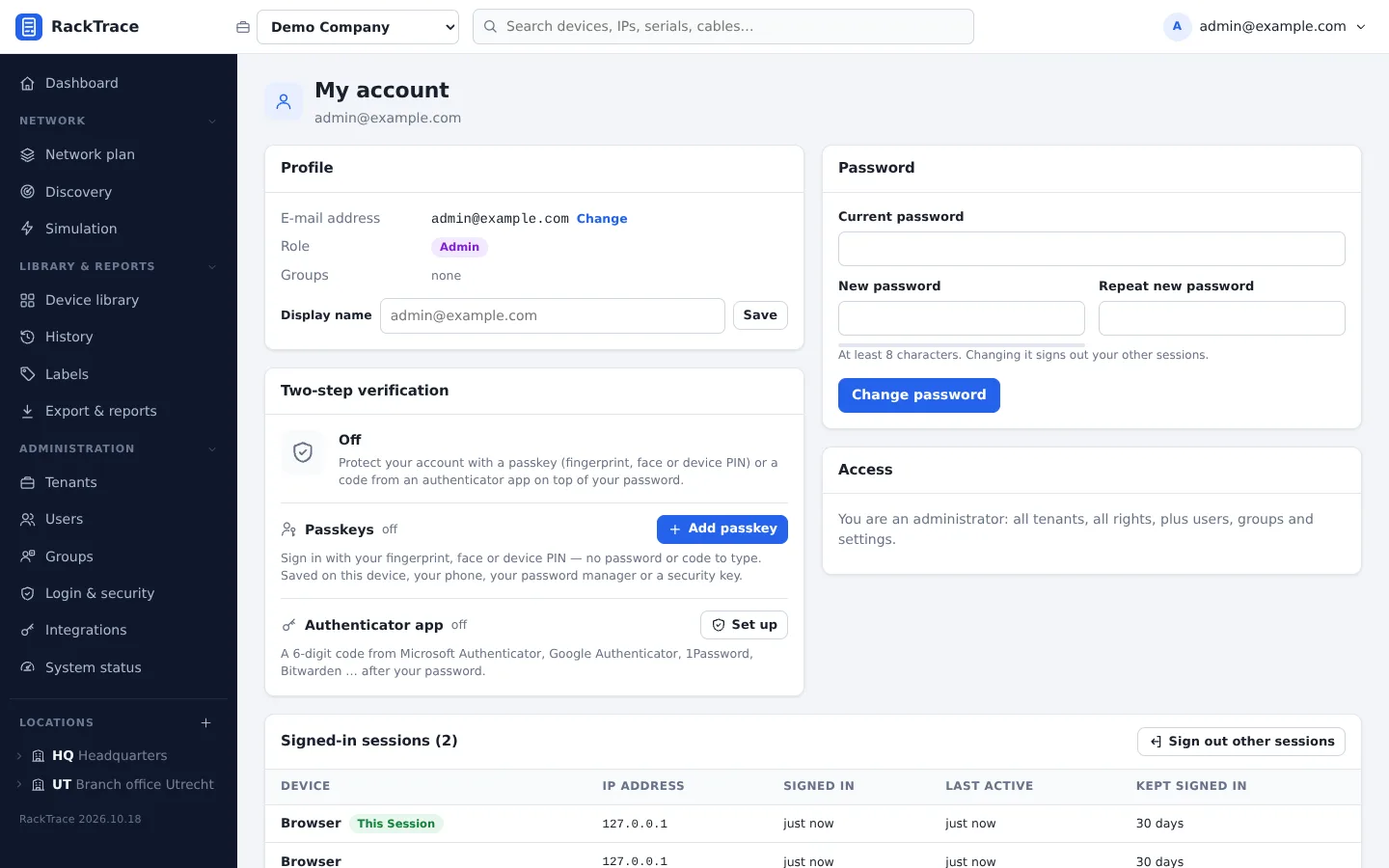
Open the user menu (your name at the top right) and choose My account for your name, password, passkeys, authenticator app, recovery codes and sessions.
Profile and access#
- Profile shows your e-mail address, role and groups. Change your Display name and click Save.
- To sign in with another e-mail address, click Change next to it, enter the new address and your password, and click Change. RackTrace e-mails a link to the new address: your address changes once you open it and click Confirm e-mail address — until then you keep signing in with the current one. Meanwhile the profile shows the new address with Send again and Cancel. The link works once and for 24 hours.
- Access lists every tenant you can open and your rights in it (for example Documentation, Cabling, or read only).
Signed in with Microsoft? Then your password and second step are managed by Microsoft; change them with your organisation's IT. If you also have a RackTrace password, the password and two-step settings on this page are for signing in without Microsoft.
Changing your password#
- On My account, in the Password card, fill in your Current password, the New password and Repeat new password. Use at least 8 characters; a short sentence is easier to remember and harder to guess.
- Click Change password. Your other sessions are signed out.
Change password in the user menu does the same in a quick dialog.
Passkeys#
A passkey signs you in with your fingerprint, face or device PIN, with no password. It can be saved on your computer (Windows Hello, Touch ID), your phone, a password manager (iCloud Keychain, Google Password Manager, 1Password, Bitwarden …) or a security key. It also counts as two-step verification.
- On My account, under Two-step verification, click Add passkey.
- Fill in Confirm with your password and optionally a Name (e.g. Work laptop, iPhone).
- Click Create passkey and follow your browser.
- If this is your first second step, save the recovery codes that appear.
The list shows each passkey with whether it is synced or on this device only, and when it was last used. The pencil renames it; the bin removes it after you enter your password. If your administrator requires two-step verification, you can't remove your last passkey until you have another one, or the app.
Note
Passkeys need the app opened by its domain name over HTTPS, not an IP address, in a recent browser. A passkey made on one address only works on that address.
Authenticator app and recovery codes#
- Next to Authenticator app, click Set up, fill in Confirm with your password and click Next.
- Scan the QR code with Microsoft Authenticator, Google Authenticator, 1Password, Bitwarden or a similar app. Can't scan? Open Can't scan? Enter the key by hand and copy the key.
- Enter the 6-digit code the app shows. If it's refused, check that the time on your phone is correct.
- Save the 10 recovery codes with Copy or Download, tick I have saved these recovery codes and click Continue.
Each recovery code works once, for when you have neither your passkey nor your phone. The codes are shown only once; New codes makes a new set and stops the old ones. When three or fewer are left, RackTrace reminds you. Turn off removes the app after you enter your password.
Sessions and signing out#
Signed-in sessions lists every browser where you are signed in, with device, IP address, when you signed in and when it was last active. Sign out other sessions ends all except this one. Sign out in the user menu ends the current one.
Dark mode, help and the version#
- Toggle dark mode in the user menu switches between light and dark; your browser remembers the choice.
- Help & docs opens these docs in a new tab.
- The RackTrace version is shown in the user menu and at the bottom of the side menu; mention it when you report a problem.