
Login & security
On this page
Under Administration → Login & security you set what your people see when they sign in and how they sign in.
Login page and two-step policy#
Open Administration → Login & security.
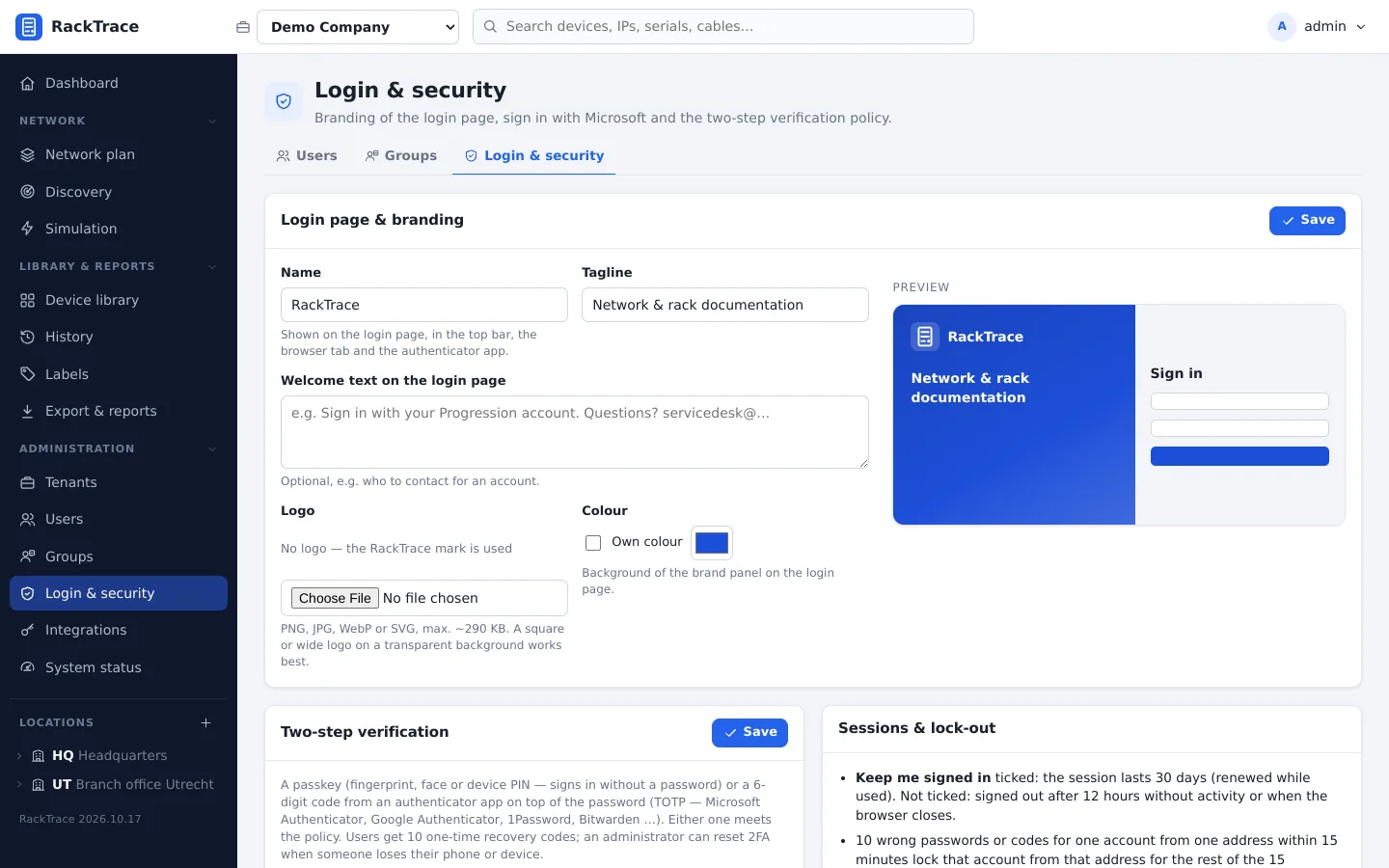
Login page & branding#
Set the Name (shown on the login page, in the top bar, the browser tab and the authenticator app), a Tagline, a Welcome text on the login page (for example who to contact for an account), a Logo (PNG, JPG, WebP or SVG, max. about 290 KB) and an Own colour for the login page. The Preview shows the result. Click Save.
Two-step verification policy#
- Optional: users turn it on themselves under My account.
- Required for administrators: administrators set it up at their next sign-in.
- Required for everyone: every user sets it up at their next sign-in.
A passkey or the authenticator app both meet the policy. If you require it but don't have it yourself, you are asked to set it up straight after saving. People who sign in with Microsoft get their second step from Microsoft instead.
Support access by RackTrace#
On racktrace.io, Allow RackTrace support to sign in (under Administration → Login & security) lets the RackTrace team help you in your organisation as the account RackTrace support.
- The support team needs two-step verification to sign in.
- A support session ends after at most 4 hours, and shows RackTrace support · name in the top bar.
- Every change is in the history as RackTrace support (name).
- Switching it off also ends an open support session. The card shows the last support sign-in.
- The support account is not one of your users: it is not in the list under Users and does not count for your plan. While a support session is open, the card says so, with End it.