Configuration from UniFi
With a UniFi site linked, RackTrace reads the configuration of the console, shows what differs from the network plan, and warns about changes that can open up the network.
Reviewing what UniFi reports#
With a UniFi site linked, a banner at the top says how many differences UniFi reports. Click Review, or open the From UniFi tab.
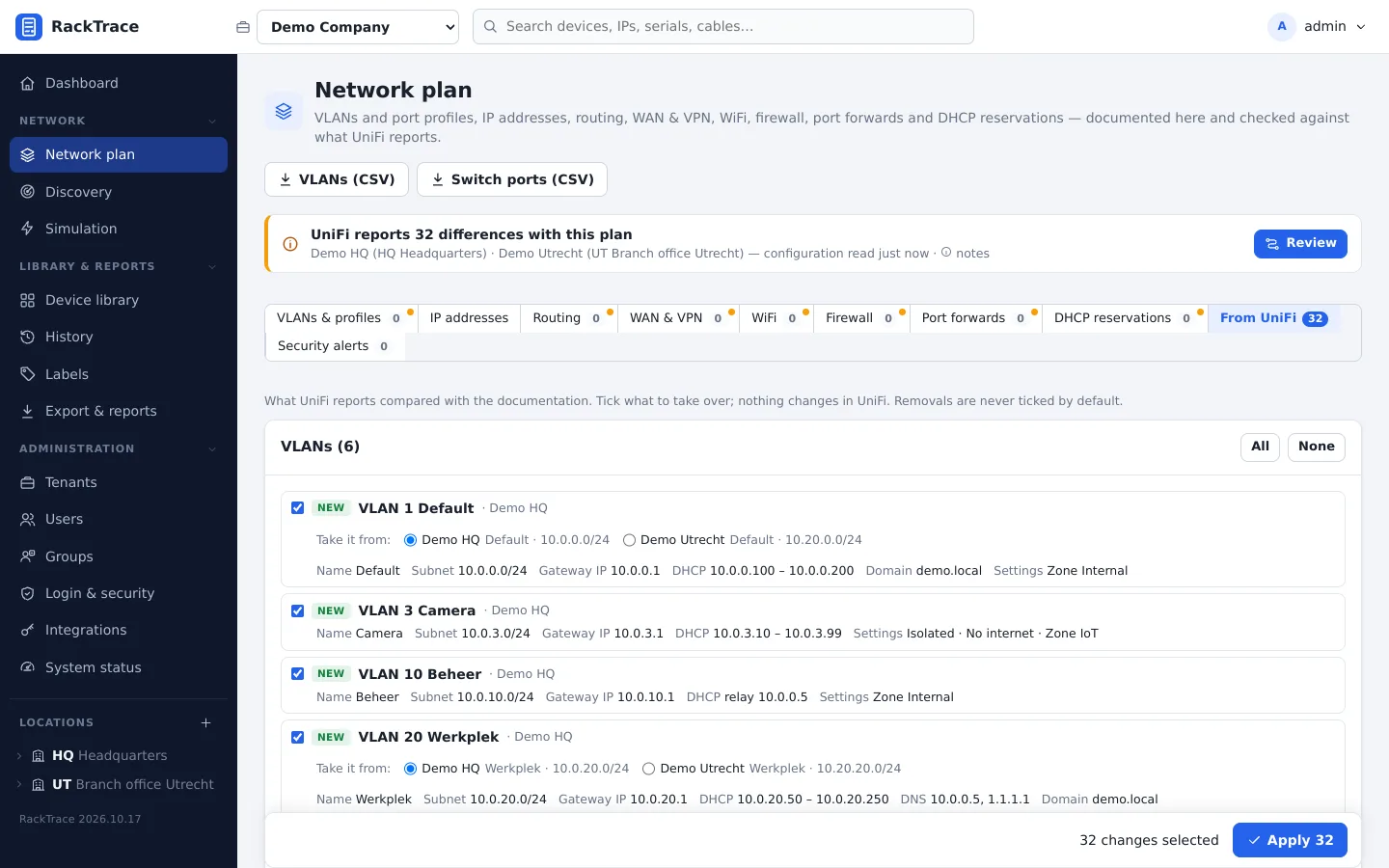
- Go through the sections: VLANs, port profiles, switch ports, routes, WAN, VPNs, WiFi, firewall, port forwards, DHCP reservations and IP assignments.
- Each item is new, change (with every field from → to) or remove. Tick what to take over; All and None work per section. Removals are never ticked by default.
- When two sites in one network report the same VLAN with different settings, choose under Take it from: which site the plan documents.
- Click Apply in the bar at the bottom.
Every difference is also a deviation with a status: the chip next to an item says whether it is open, accepted or ignored, and the line above the sections counts them. What you apply is resolved straight away.
With Keep the documentation in sync on (it is off until you switch it on), the VLANs of the switch ports of linked devices are taken over by themselves, together with the VLANs and port profiles they need; the review then has no switch ports left for those devices (see The documentation follows the network).
Nothing is ever written to UniFi. New VLANs get the site's gateway as gateway device, so the route check works straight away. A switch port whose VLANs match no profile gets a new profile, such as UniFi 20+30. Passphrases, keys and passwords are never read into RackTrace.
Security alerts#
After every sync, RackTrace compares the UniFi configuration with the previous one. Changes that can open up the network become an alert. A red number at Network plan in the menu and a banner on the dashboard show how many are open.
| Severity | What raises it |
|---|---|
| High | A new, changed or switched-on port forward. A blocking firewall rule removed, switched off or now allowing. An open WiFi network that isn't a guest network, or a WiFi network moved to another network. Isolation switched off, a network that is no longer a guest network or moved to another firewall zone. A new VPN. |
| Medium | A new allow rule, or a blocking rule that changed. An open guest WiFi. Internet access allowed for a network. A VPN switched on, or with other remote subnets or peer. Switch ports in another VLAN. |
Checking the alerts#
- Open the Security alerts tab. Filter on Open, Seen or All.
- Check each alert. Compare with the plan opens the matching part of the review.
- Click Mark as seen (or tick several and Mark … as seen, or Mark all as seen). Add a Note, such as why the change is fine.
Who marked it, when, and the note are kept with the alert and in the history. The first sync is the baseline and gives no alerts.
The checks of a watched simulation scenario that fail are alerts too, with Simulation as their source and Open the scenario to go back to it.