
Device library
The device library holds the templates you place in racks and rooms. A template brings the real port layout with it, so a new device has the right ports straight away.
The device library#
Open Library & reports → Device library. It has 1,200+ built-in templates with the real port layout: the complete UniFi range, Cisco Catalyst and Business, Aruba, APC and Eaton PDUs and UPSs, Siemens SCALANCE, HPE, Synology and HP servers and storage, patch panels, PATCHBOX, blank and brush panels, cable managers (open or with a cover) and generic equipment.
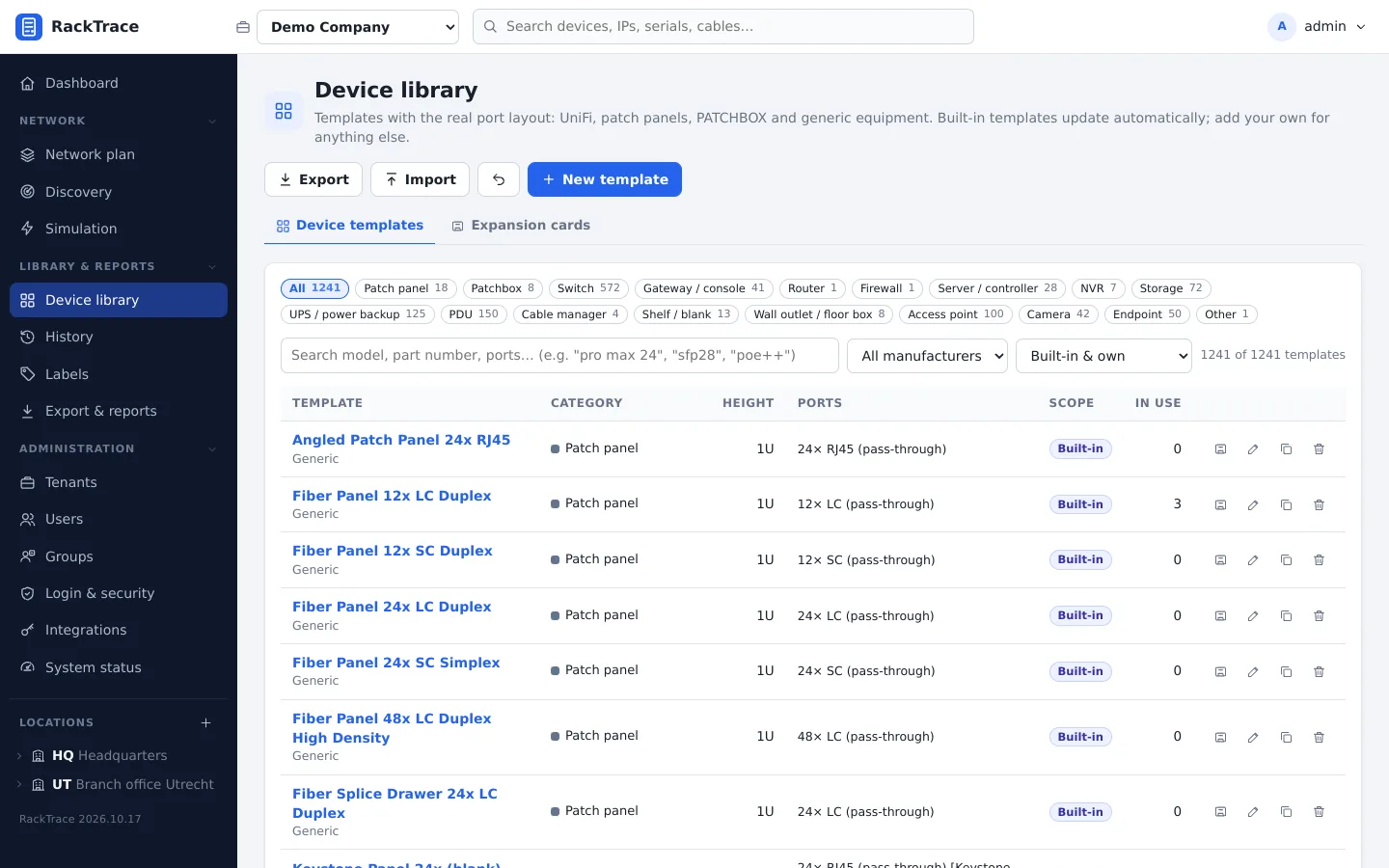
- Filter by category, by manufacturer and with Built-in & own / Built-in only / Own templates only. In the search, every word must match: try pro max 24, sfp28 or poe++.
- Click a model to see its details and faceplates; Preview ports does the same from the list.
- Duplicate a similar template to make your own variant, Edit to change one, or delete it.
- Export downloads the library as JSON; Import reads such a file, for example from another installation.
- Administrators can click ↺ (Restore built-in templates) to bring removed or edited built-in templates back to the original. Your own templates are not touched.
Note
Changing a template only affects devices you add afterwards; existing devices keep their ports. Built-in templates update automatically, unless you edited them.
Making your own template#
- Click New template, or Duplicate on a template that is close.
- Fill in Manufacturer, Model / name, Part number / SKU, Category and Height (U) (0 for devices that aren't rack-mounted). Tick Full depth when it fills front and rear.
- Under Available to, choose Global — all tenants (administrators) or only the current tenant.
- Add the Ports with the port-group editor (see Adding ports). For a patch panel, tick Pass-through so the front and rear ports are connected inside.
- Optionally add Expansion slots (name, kind, side and position on the faceplate), a Datasheet / source link and Notes.
- Click Save.
Rack cabinets#
The Rack cabinets tab holds the cabinets a rack can be — Rittal, APC NetShelter and others — with their size, colour and doors. See Rack cabinets.
Expansion cards in the library#
The Expansion cards tab holds network adapters, FC and SAS HBAs, OCP, FlexibleLOM, Synology and HP Flex IO modules. New card adds your own: fill in the model, Fits in (the slot kind) and the Ports on the bracket. A card's ports get their names from the slot it is fitted in (S3-1, OCP2-1 …), with the card's prefix in front.