UniFi
Link UniFi to RackTrace to see what is behind every port, check the cabling and read the network configuration. An administrator connects UniFi once; after that everyone works on the Discovery page of their tenant.
Connecting UniFi#
- Sign in at
unifi.ui.comwith the account that owns the consoles and go to API → Create API key. The key is read-only and covers every console of that account. - In RackTrace, open Administration → Integrations and the UniFi tab. Fill in a Name and paste the API key, then click Connect.
- Click Test connection, then Sync now. The sites of the account appear under UniFi sites.
- For every site, choose the Tenant (customer), the Location and, if one location has two environments, the Network. Only linked sites are read in detail.
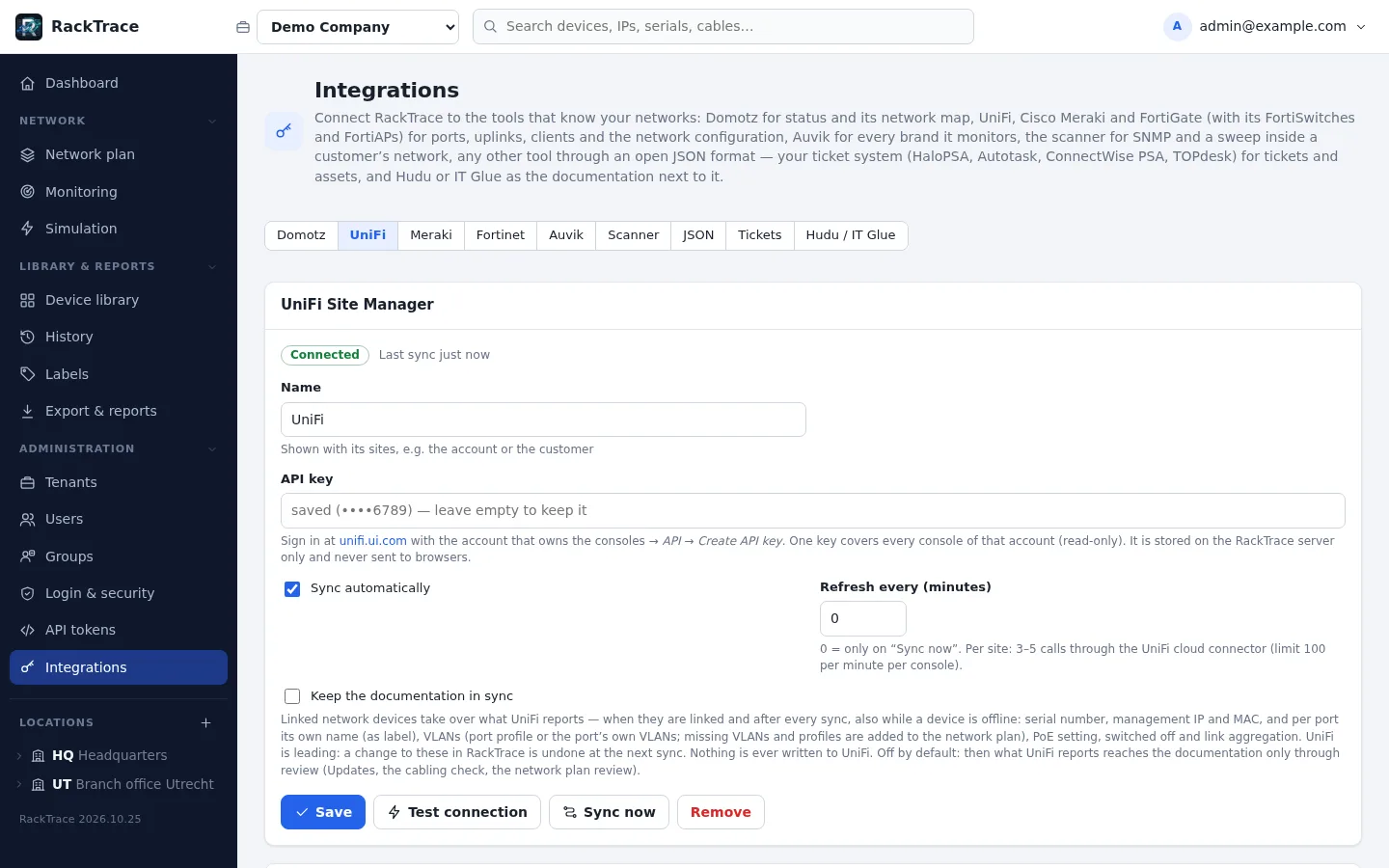
Sync automatically and Refresh every (minutes) (15 by default; 0 = only on Sync now) set how often RackTrace reads the sites. The key is stored on the server only; you only see its last four characters.
Keep the documentation in sync (off for a new source and for a UniFi source from before this setting existed, until you switch it on): a linked switch, access point or gateway takes over its serial number, IP and MAC, and per port its own name, VLANs, PoE setting, whether it is switched off and the link aggregation — when it is linked and after every sync, also while it is offline. UniFi is leading. See The documentation follows the network.
Consoles in a different UniFi account: click Add another UniFi account at the bottom of the tab and give it its own name and key. The console needs UniFi OS 5.0.3 or newer.