Signing in
On this page
You sign in with your e-mail address. Depending on how your organisation is set up, you use a password, a passkey or your Microsoft work account, and sometimes a second step.
Signing in with your e-mail address#
You don't need to know the address of your organisation: sign in on app.racktrace.io and RackTrace takes you there.
- Go to
app.racktrace.io, or go to racktrace.io, click Sign in and then Sign in with your e-mail address. - Enter your E-mail address and Password.
- Leave Keep me signed in ticked to stay signed in for 30 days (renewed while you use RackTrace). Without it you are signed out after 12 hours without activity, or when you close the browser.
- Click Sign in. You land in your organisation. Does your e-mail address have an account in more than one organisation? Then Choose your organization lists them: click the one you want. If your account has two-step verification, the second step follows on your organisation's page.
Every organisation also has its own address, such as yourcompany.racktrace.io, or its own domain, such as docs.yourcompany.com. You can sign in there directly as well, with the same e-mail address and password; the eye button shows or hides what you typed.
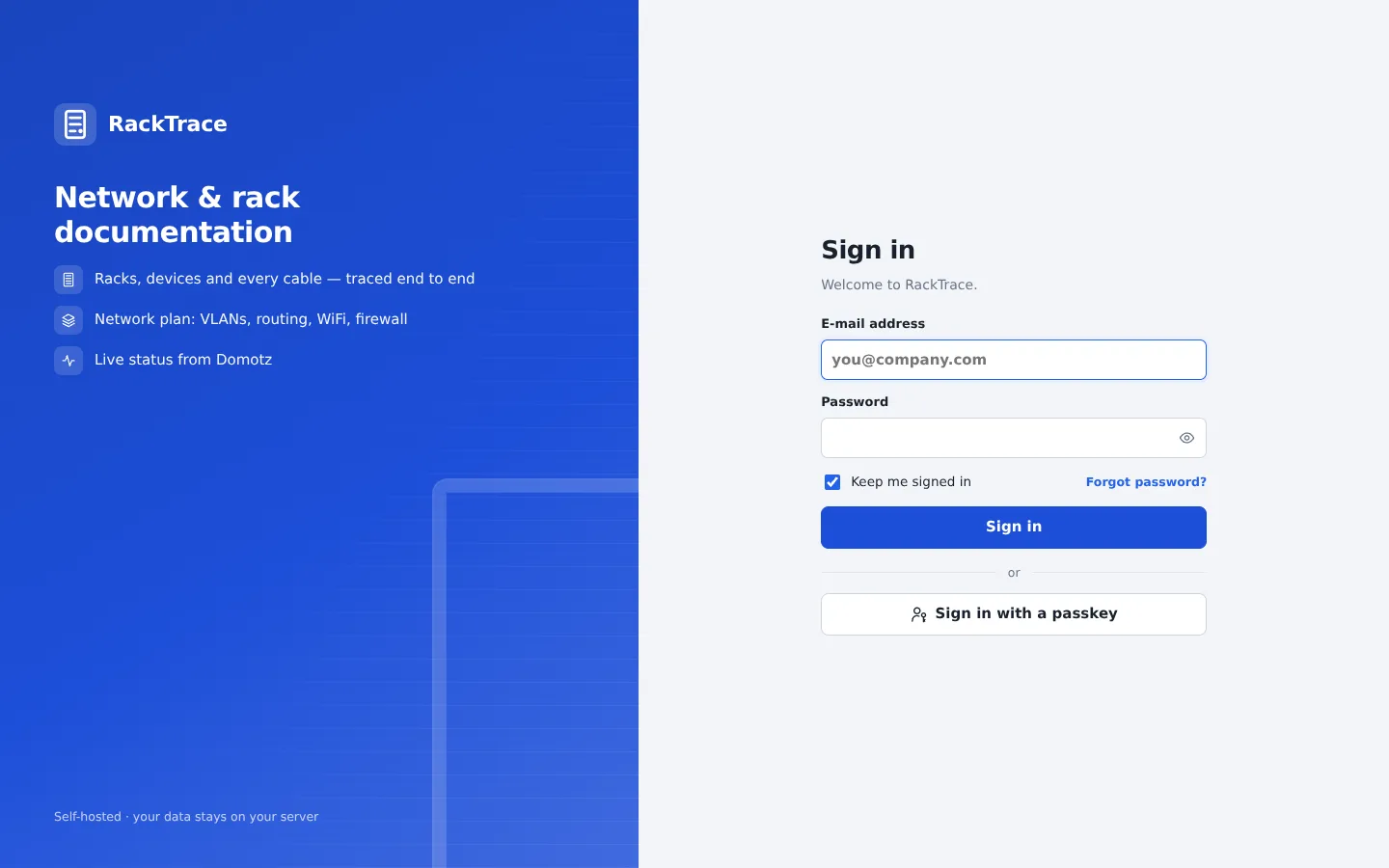
Sign in with a passkey (below the password form) signs you in with your fingerprint, face or device PIN, without an e-mail address or password. Your browser may also offer the passkey when you click the E-mail address field. A passkey belongs to your organisation's own address: on app.racktrace.io, click Sign in with Microsoft or a passkey, type the first part of the address in Organization and click Continue. You first need to add a passkey under My account.
Sign in with Microsoft appears when your organisation has set it up. Click it and sign in with your work account (Microsoft 365). Microsoft checks your password and the second step, so RackTrace doesn't ask for its own. When your organisation requires Microsoft, only that button is shown; the password form under Administrator? Sign in with your password is for administrators, for when Microsoft is not available. Signing in with a password on app.racktrace.io then shows a link to the organisation's own address (Go to …).
Forgot your password?
There is no reset link. Ask an administrator to set a temporary password; you choose your own the next time you sign in.
After a session ends, signing in again brings you back to the page you were on, also when you came from a QR label.
Creating your account from an invitation#
When an administrator adds you, you get the e-mail You are invited to … in RackTrace. It tells you your role, which tenants you can open, and what is expected of you.
- Click Create your account in the e-mail. The page shows your e-mail address: you sign in with it.
- Check Your name, fill in a password of at least 8 characters under Choose a password and Repeat the password, and click Create account. When your organisation uses Microsoft, you can click Sign in with Microsoft instead; when it requires Microsoft, that is the only button.
- You are signed in. If your organisation requires two-step verification, you set it up straight away.
The link works once and is valid for 7 days. Has it expired, or does it say This invitation no longer works? Ask the administrator who invited you to send it again: just reply to the e-mail. After your first sign-in you get a second e-mail with a short explanation of how RackTrace works and links to these docs.
An account with a username from before#
Accounts made before RackTrace used e-mail addresses still have a username, such as admin. Sign in with it once on your organisation's address; RackTrace then shows Add your e-mail address.
- Type your work e-mail address in E-mail address and Repeat e-mail address and click Save and continue. If you signed in more than 15 minutes ago, RackTrace also asks for your password.
- RackTrace sends a link to that address and shows Check your mailbox. Open the e-mail Confirm your e-mail address — on your computer or your phone — and click Confirm e-mail address.
- The page you signed in on continues by itself. From then on you sign in with that address; your password, passkeys and two-step verification stay the same.
The link works once and for 24 hours. Nothing arrived? Look in your spam folder or click Send the link again; a typing error is fixed with Use another address. Don't have a work e-mail address, or does someone else already use it? Ask an administrator: they can enter the address for you under Users.
The second step#
With two-step verification on, RackTrace asks for more than your password on the Two-step verification screen (when you signed in on app.racktrace.io, it opens on your organisation's own address):
- App code: open your authenticator app and type the 6-digit code for RackTrace. It is sent by itself after the sixth digit (or click Verify).
- Passkey: the browser asks for your fingerprint, face or PIN straight away. Click Use my passkey to try again.
- Recovery code: one of the codes you saved when you set up two-step verification, like
abcd-efgh. Each code works once.
Switch between them with Use a passkey, Use the code from my app and Use a recovery code. ← Back returns to the password. Finish the second step within 5 minutes; after 5 wrong codes you start again with your password.
If your administrator requires two-step verification and you haven't set it up, you see Set up two-step verification right after signing in. Choose Passkey (recommended) or Authenticator app and follow the steps in Passkeys or Authenticator app. If you signed in more than 15 minutes ago (your administrator made two-step verification required while you were signed in), RackTrace also asks for your password. If your password was set by an administrator, you first see Choose a new password: enter the temporary password, then your new one twice, and click Save and continue.